
WoW chat channels explained: /s, /1, whispers and RP etiquette
Who can hear /s, /1, /w, party and guild chat? A beginner guide to WoW chat channels, channel numbers and RP etiquette.

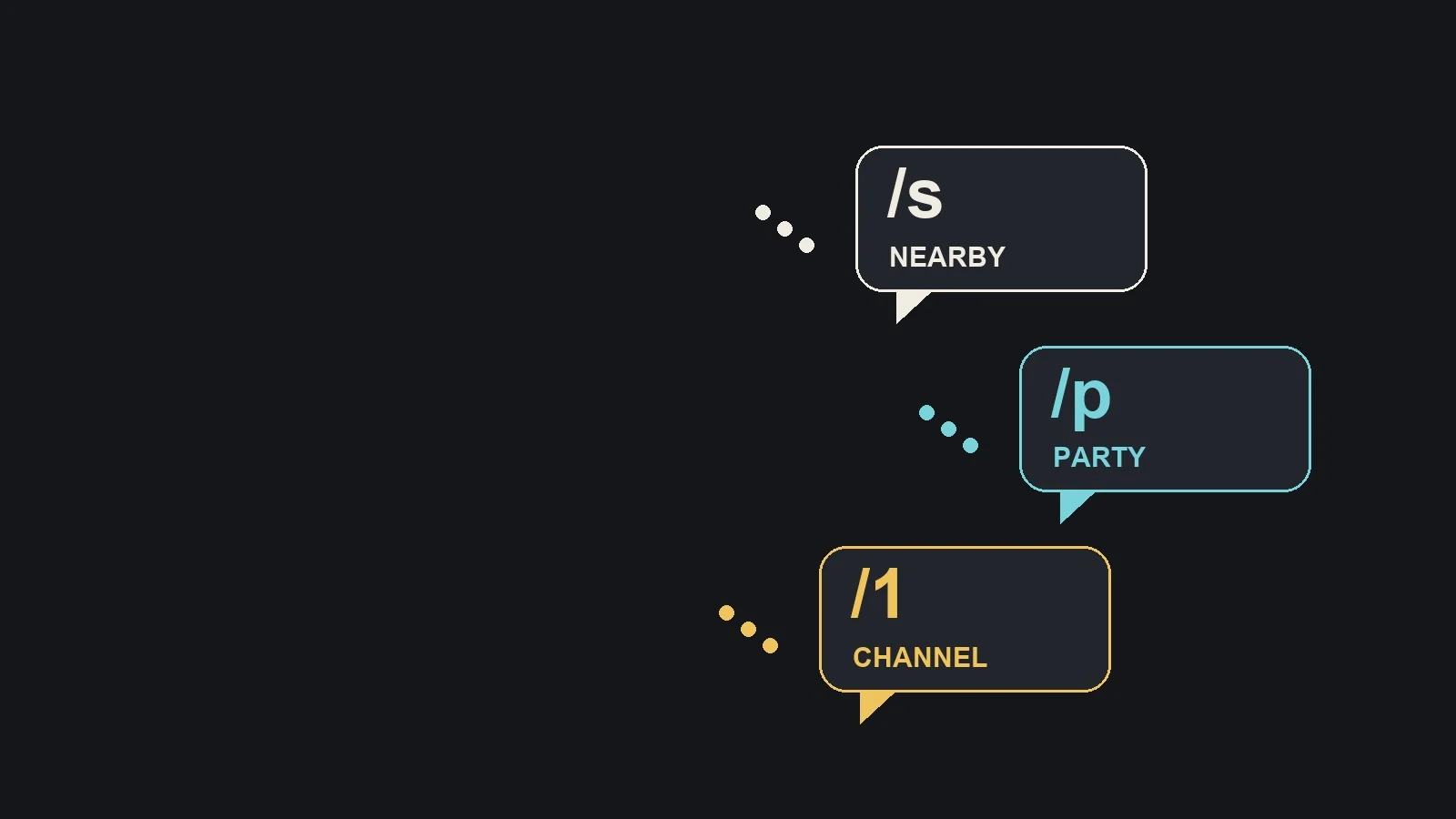
Original Crit Pick channel illustration · explanatory graphic, not the game interface.
You want to ask someone standing beside you a question, but your message ends up in a channel full of strangers. The command at the start of the line decides who hears you. In WoW chat, /s is nearby speech; /1 sends to whichever numbered channel occupies slot 1 on your character.
This guide is for players finding their feet in World of Warcraft: Forever, especially on the Roleplaying and RP-PvP rulesets. It explains the familiar WoW chat commands, how to check your channel numbers, and how to keep an out-of-character question from interrupting a roleplay scene. Commands below use the English client; channel names and available options can vary by version and language.
On this page
/sNearby
Speech for people around your character.
/pYour party
A shared conversation for party members.
/1Channel 1
Check its assigned name before you send.
WoW chat commands: who can read your message?
Press Enter to open the chat box, type a command followed by a space and your message, then press Enter to send. For example, /s Hello there! speaks locally. Look at the destination label before sending, especially after a whisper or group conversation: the game can keep your previous chat mode selected.
| Command | Destination | Useful for |
|---|---|---|
/s or /say | Nearby players | Speaking to someone in the same scene |
/y or /yell | A wider local area than Say | Calling out; use sparingly around RP |
/e or /emote | Nearby players, as an action beginning with your character's name | Describing what your character does |
/w Name message or /whisper Name message | The named player | A direct question or private coordination |
/r message or /reply message | Your latest whisper correspondent | Replying after checking the recipient |
/p or /party | Your party members | Quest plans, pulls and loot questions |
/raid | Your raid group | Raid coordination |
/rw | Raid warning, with the required group permissions | Important raid instructions |
/g or /guild | Online guild members | Guild conversation and organizing activities |
/o or /officer | The guild's officer channel, subject to permissions | Officer communication |
/1, /2, and other numbers | The numbered channel assigned on your character | General, Trade or another joined channel |
A party or guild channel follows membership rather than physical proximity. Someone beside you cannot read your party chat merely because they are nearby. Equally, guild members elsewhere in the world can receive guild messages. A whisper goes to its recipient, but it is not a place to share sensitive information: messages can be saved or reported.
What are /1 and /2? Check the channel name first
The number is a shortcut, not a permanent channel identity. General is commonly /1 and Trade commonly /2 in familiar WoW setups, but do not assume those assignments match every character, ruleset or custom setup. Joining and leaving channels can change the list.
Read the bracketed label in the chat log. If you see [1. General ...], /1 sends to General. If another channel has that number, it sends there instead. Typing /1 Hello does not mean “speak to the closest player.”
Use /chatlist to inspect channels, or open the Channels section of the social window. You can also right-click a chat tab and inspect its channel settings. Check the actual name and number before posting a question to a large audience. Channel labels, not their default colors, are the safer guide when add-ons or custom colors are involved.
General, Trade chat, LookingForGroup and World
General is the broad local or zone conversation familiar from WoW. Trade chat is intended for trading and is traditionally associated with capital-city access. LookingForGroup is for finding people to play with; a custom channel called World may serve a wider conversation on some versions or communities. These names do not all mean the same audience.
Forever has its own ruleset and chat setup. Use the channels actually offered in your client; this guide does not assign a fixed Forever number, reach or automatic membership to World, Trade or LookingForGroup. A channel mentioned in an old Classic guide is not proof that your Forever character has joined it. If you want to ask about a quest, choose the relevant available channel; once a group exists, move its coordination to party chat.
RP chat channels: in character and out of character
In character (IC) means your character is speaking or acting within Azeroth. Out of character (OOC) means you, the player, are discussing the game, scheduling or something outside the scene. Neither term changes the technical audience of a channel.
Around an active RP scene, /say and /emote are the usual tools for speaking and acting as your character. /yell reaches farther, so a repeated shout can interrupt people who are not part of your conversation. Before joining, read a little of the scene and leave room for the other players to respond.
A short RP conversation, with the commands included
These are invented examples, not a screenshot or a transcript of a live event. Replace Name with the other player's actual character name.
/s Is this seat taken?— your character speaks to people nearby./e rests a travel-worn satchel beside the empty chair.— an action appears with your character's name in front of it./w Name Hi! I'm new to RP. Is this an open scene?— you ask the player directly before joining./p Five-minute break, then shall we continue?— OOC coordination if the people involved are in your party and have agreed to use it that way.
Write an emote such as “offers a handshake,” giving the other character a choice. Avoid deciding their reaction for them with “forces you to shake her hand.” This is practical RP etiquette, not an additional game command. You can describe your own character's intentions without controlling someone else's.
Forever's OOC channel and the General chat debate
Launch-week players on Blizzard's forums report a regional OOC channel on Forever's RP rulesets. They disagree about what that means for General: one thread proposes using General for in-character notices, while replies and another thread describe General as OOC. The proposal explicitly presents itself as optional community guidance, not an official requirement.
Check the OOC channel shown in your own channel list and use its assigned number; do not copy a fixed /4 or /5 from another player's setup. For a scene-specific question, a polite whisper is often easier than starting a rules argument in public chat. Guilds and event organizers can also explain their own expectations.
The existence of an OOC channel does not, by itself, prove that Blizzard requires every General or Trade message to be in character. This guide does not turn conflicting player comments into an enforcement policy. Respect RP in progress, avoid spam and harassment, and follow the current game rules and any agreed event conventions.
Join, leave or create custom channels
For an available named channel, type /join ChannelName. For example, /join MyRPGroup joins or creates a custom channel with that name. Give friends the exact name, then have everyone check the number it receives on their own character. Your /5 is not guaranteed to be their /5.
Use /leave ChannelName to leave it, or /leave 1 if you have confirmed that slot 1 is the channel you want to leave. Leaving affects membership. Hiding a channel in one chat tab only changes what that window displays; it does not necessarily leave the channel.
Custom channels are useful for recurring events or a group of friends outside a single party. A name alone does not make a channel private. Check its access and moderation options before treating it as a closed group. You do not need to create one just to ask a single player a question; a whisper is simpler.
Make the chat log easier to follow
A busy capital city can fill the chat window faster than you can read a scene. Separate the conversations you need instead of trying to watch every message at once.
- Right-click the current chat tab and look for the option to create a new chat window or tab.
- Make an RP-focused tab showing Say, Emote and relevant whispers. Include Yell if you want to follow nearby calls.
- Keep General, Trade and other busy public channels in a different tab.
- Keep party, raid and guild messages easy to find when grouping. Review the filters after creating the tab.
The exact menu wording depends on your client and add-ons. If an option is missing, inspect the tab's Settings and the game's chat options. A tab called “RP” is just a filtered view of messages; it does not create a new shared channel for everyone else.
Why can't I see or send chat messages?
Check the destination and display settings before resetting anything. A quiet chat log can mean nobody is speaking, the selected tab hides that message type, or you are no longer in the channel.
- Your message goes to the wrong place: type
/s,/por the correct channel number explicitly, then verify the destination label. - A channel disappeared: check
/chatlist, channel membership and the tab's filters. Rejoin the intended named channel if it is available. - Trade chat is unavailable: check your location and the channels supported by your version. Do not assume every public channel works everywhere.
- Guild, officer or raid warning will not send: check membership and permissions. Officer chat and raid warnings have access requirements.
- One player's speech is missing: check distance, ignore settings and whether the message type is displayed. Local speech is not a global broadcast.
- Sending remains blocked: check the error message for account or chat restrictions and consult Blizzard Support. An add-on conflict is another possibility; avoid deleting your whole interface setup as the first step.
If you used /r, check whom it is replying to. A new incoming whisper can change the latest correspondent. For an important reply, selecting the recipient explicitly with /w helps avoid sending it to the wrong player.
Sources and version notes
Checked 7 November 2026. This is a source-based command and etiquette guide, not a hands-on test of every Forever chat option. English slash commands follow the established WoW interface. Forever-specific OOC observations are player reports; fixed channel numbers, exact hearing distances and disputed RP enforcement claims are deliberately not presented as verified facts.
- Blizzard's World of Warcraft manual: chat commands and channel membership.
- WoW UI source: chat command handling: published client-interface code mirrored by Gethe; cross-version reference, not a Forever runtime test.
- Blizzard: Choose Your Ruleset: the roleplaying ruleset context.
- Forever players: Regional General, OOC, and You: an explicitly optional RP proposal and contrasting replies.
- Forever players: OOC, Trade and General clarification: conflicting community interpretations, not an official ruling.
For more beginner help, visit the WoW Forever hub or read the weapon skills and Defense guide.